How to Create a PDF with Browser Print
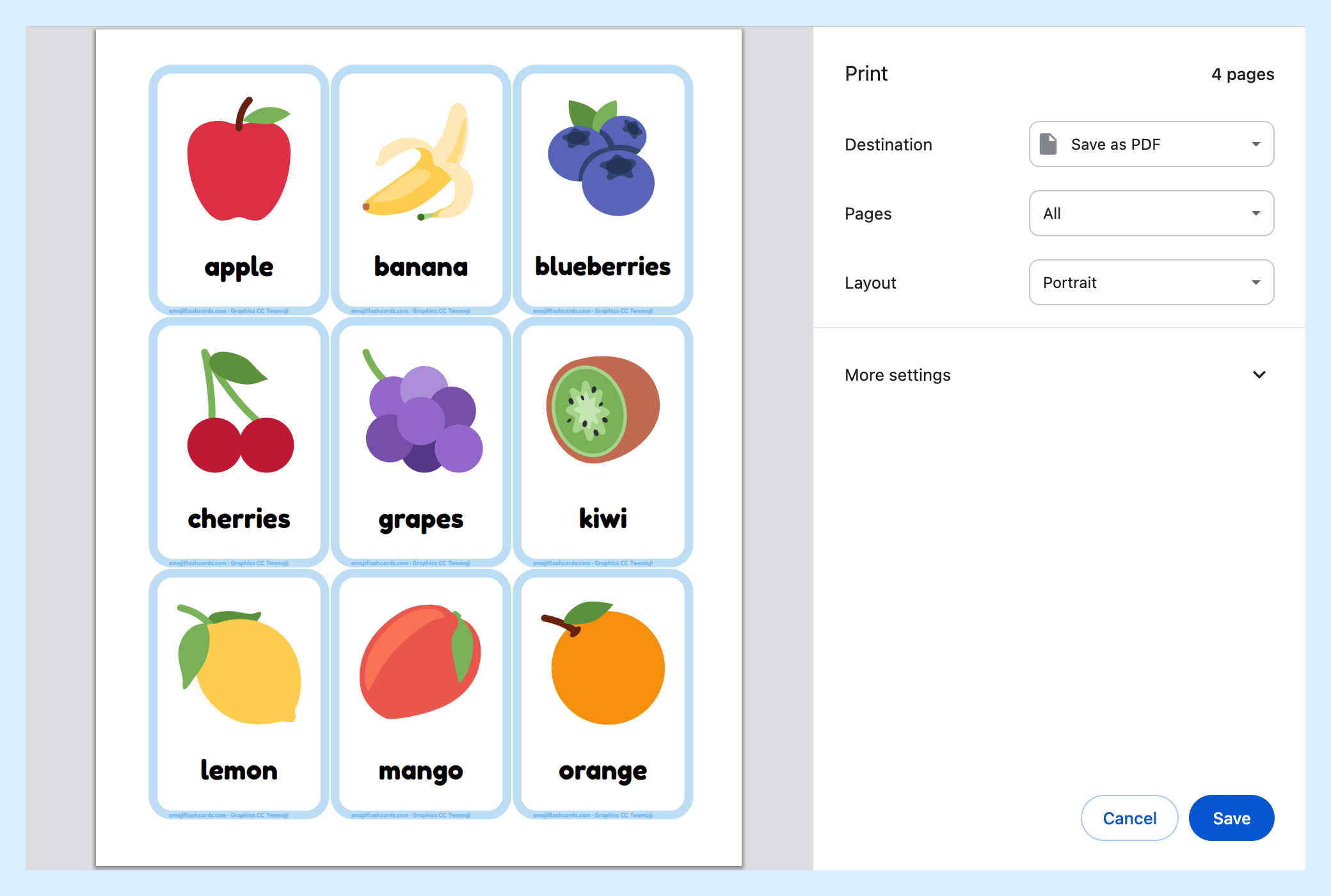
This guide will show how to create PDF files using the browser print function. Using this you can create a PDF of any printable resource on emojiflashcards.com.

Navigating to the Browser Print Page
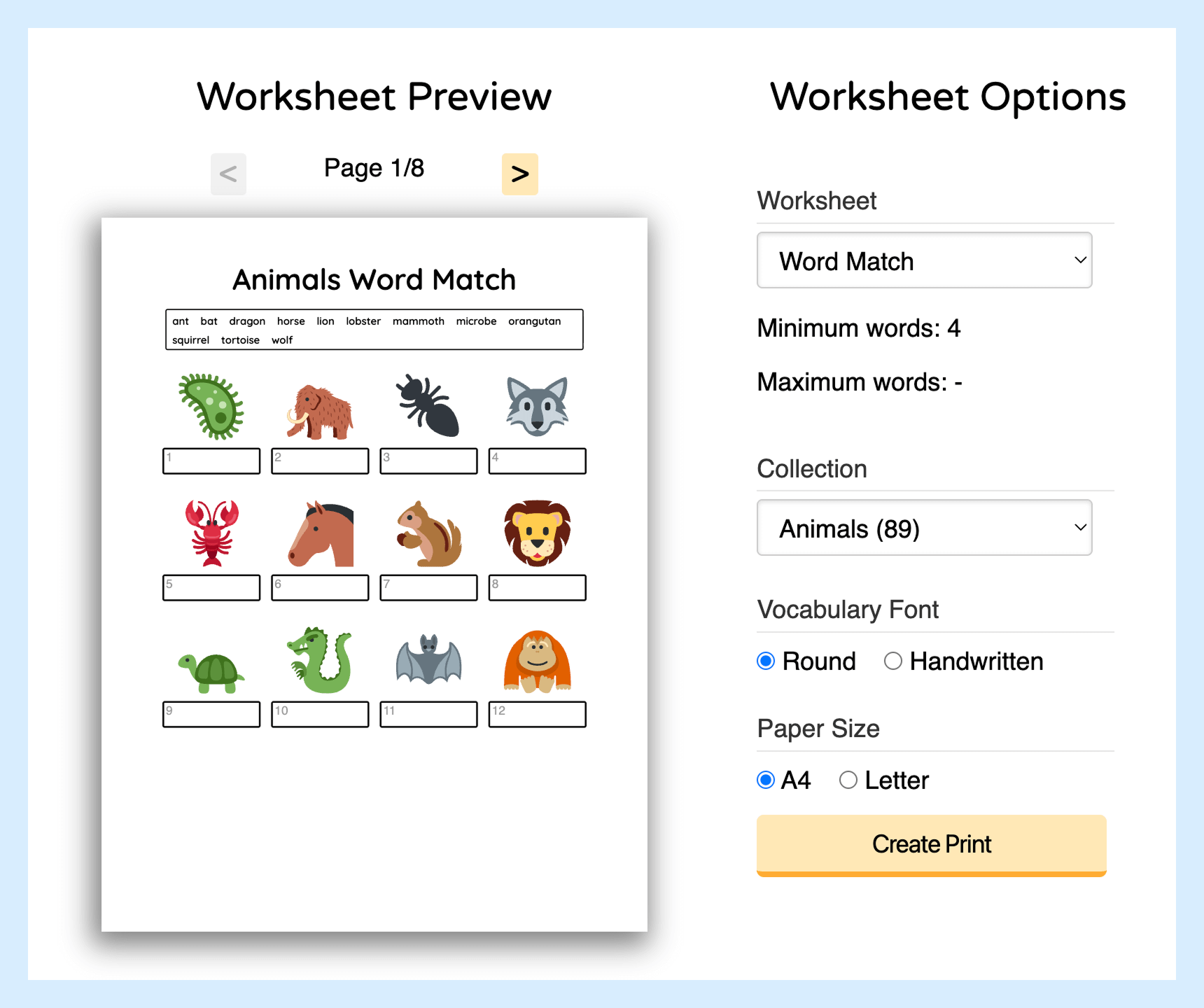
Create the print in the same way as printing from the browser, with the 'Create Print' button. This will open the printable in a new tab for easy printing.
Open the Browser's Print Function
Select the browser's print function from the menu or by using the print shortcut.
Instructions for Chrome
Click File and then Print. Or, use a keyboard shortcut:
- Windows & Linux: Ctrl + p
- Mac: ⌘ + p
Instructions for Safari (Mac only)
Click File and then Print. Or, use the keyboard shortcut:
- ⌘ + p
Saving the PDF from the Browser Print Dialog
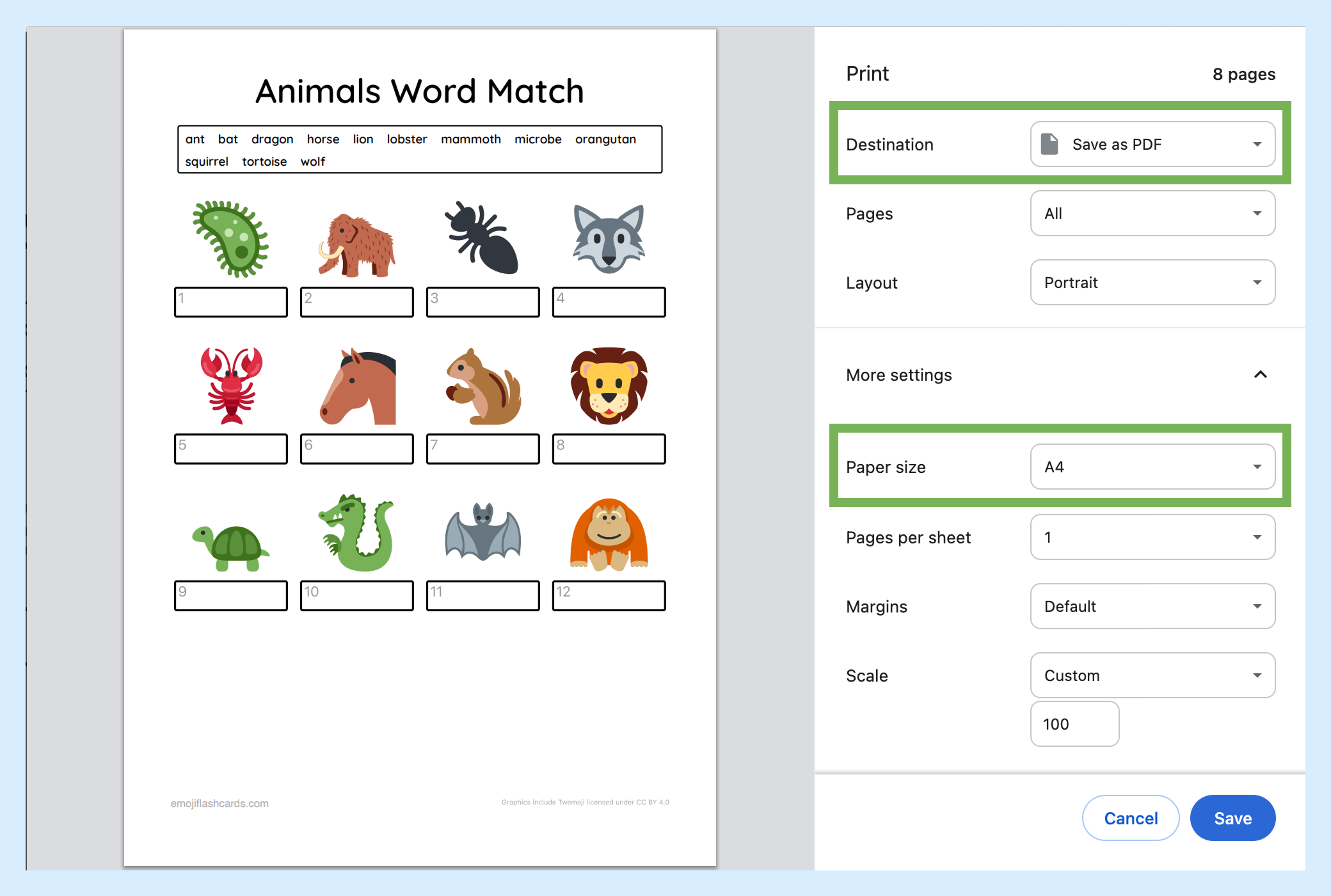
- Choose 'Save as PDF' as the destination
- Select the correct paper size
- Press the 'Save' button
- Enter the file name and save the file